Extend Your C Drive in 2 Clicks — No Tech Skills Needed
Free up your full C drive instantly. Reallocate space from other partitions, resize, merge and split drives — with no data loss in normal operations.
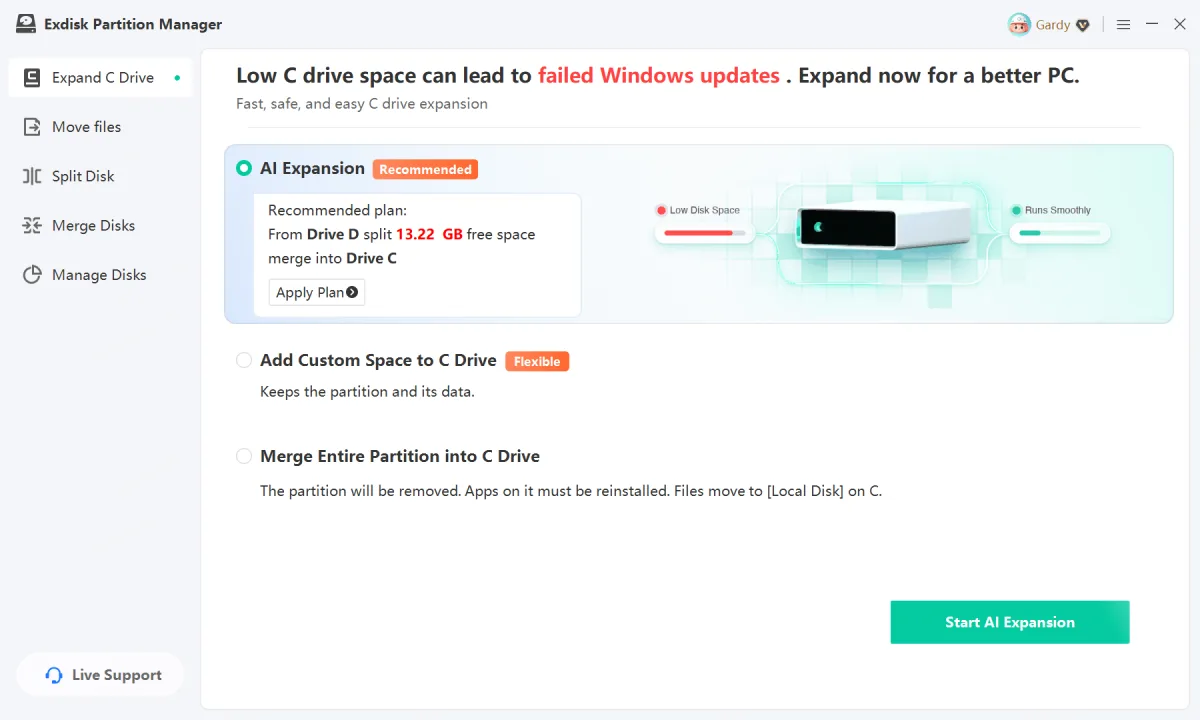
Built to Fix the Problems That Actually Fill Up Your Disk
Three things go wrong on almost every Windows PC. Exdisk handles all of them without formatting or reinstalling.
One-Click C Drive Extension
Take idle free space from your D:, E: or any other partition and move it straight into the C drive. Two steps, no command line, no data loss.
Custom Partition Sizing
Split one drive into several or merge them back together. Allocate exactly the amount of space each partition needs — nothing wasted.
Permanently Wipe Data
Erase a disk or partition so the data can never be recovered — essential before you sell, return or hand over a machine.
A Complete Disk Toolkit Covering 90%+ of Everyday Needs
Everything you need to manage, optimize and protect your drives — in one lightweight app.
Extend C Drive
Add free space to a full system drive and stop the slowdowns and failed updates.
Get Started ›Split / Merge Partitions
Divide a large partition or combine several into one — including non-adjacent drives.
Get Started ›Resize / Move Partitions
Change the size or position of any partition without touching your files.
Get Started ›Format Partition
Reformat a drive to repair storage errors and restore normal read/write access.
Get Started ›Delete Disk / Partition
Remove a partition you no longer need and reclaim the space for other drives.
Get Started ›Wipe Data
Securely erase every trace of data on a partition so nothing can be recovered.
Get Started ›Hide / Show Partition
Keep sensitive drives out of sight in File Explorer and reveal them when needed.
Get Started ›Why Users Choose Exdisk
Powerful enough for technicians. Simple enough for a first-time user.
Genuinely Simple
No bloated wizards or cryptic menus. Extending a drive takes just two steps from start to finish.
Flexible Operations
Merge partitions even when they are not next to each other — something Windows Disk Management cannot do.
Beginner Friendly
Preview the new disk layout before anything is applied, so you always know exactly what will happen.
Works With Any Device
Internal drives, external HDDs, SSDs and USB flash drives are all supported out of the box.
Extend Your C Drive in Three Simple Steps
From download to a bigger system drive, in three guided steps.
Install and Launch
Download the installer and open Exdisk. Your full disk layout appears immediately, with free space clearly marked.
Choose Source and Target
Pick the partition to take space from and the drive to give it to. Drag the slider to set the amount, then preview the result.
Apply and Done
Confirm the operation. Exdisk reallocates the space safely and your files stay exactly where they are.
What Users Are Saying
Real feedback from people who reclaimed their disk space.
"Extending the C drive turned out to be this simple! This tool is really generous — no complicated steps, just a few easy clicks and it was done. My computer runs more smoothly now, and my work and study efficiency has improved a lot. Very satisfied!"
"I used to have constant headaches over disk partitioning, but ever since I started using this tool everything has become much easier. It is not only powerful but also very simple to operate — even a computer novice like me can pick it up easily. Highly recommended to anyone who needs to optimize their PC performance!"
"For privacy protection I chose this one! This software really does prevent data from being recovered, which keeps my privacy secure. Simple to use and worth a try — the partition resizing feature is great too, very practical."
Adapted from verified user reviews on the Chinese product page; display names localized for the North American market. Confirm final wording and consent records with your legal/localization team before launch.
Frequently Asked Questions
Everything people ask before they resize a drive for the first time.
Will I lose my files when I extend the C drive?
Do I need to reinstall Windows or format anything?
Which versions of Windows are supported?
Can I merge two partitions that are not next to each other?
Does it work with external drives and USB sticks?
Is wiped data really unrecoverable?
What if I am not sure what a change will do?
Stop Fighting a Full C Drive
Download Exdisk Partition Manager and reclaim your disk space in minutes.
Free Download